The Complete Guide to PDF Conversion: Understanding Quality, Security, and Formats
Table of Contents
Understanding the Conversion Challenge: Why PDFs Fight Back
When you convert a file, you’re essentially asking a program to interpret a fixed layout (the PDF) and translate it into a flexible layout (like Microsoft Word). This fundamental difference is the source of nearly every conversion headache. We’ll dive into the technicalities that often cause formatting to go awry.The “Fixed-Layout” Problem vs. Flowing Text
A PDF records where every single letter is placed on the page using exact X/Y coordinates. Word and Excel, however, rely on a dynamic text flow. When converting, a tool must guess the reading order, which is why columns, bullet points, and images can get jumbled.The Critical Role of OCR Technology (Optical Character Recognition)
If your PDF was created by scanning a physical document, it’s just one big image—not editable text. To fix this, you need OCR technology. OCR reads the image and intelligently recreates the text layer underneath, making the document searchable and editable after conversion.To convert scanned PDFs with flawless text recognition, use our dedicated PDF to Word converter, which includes advanced OCR capabilities.
Mastering the Key Conversion Workflows with the PDF Conversion Guide
Converting PDF to Editable Formats (DOCX, XLSX, PPTX)
This is the most common and complex conversion type. You need to edit content, analyze data, or present slides.- For Text Editing (PDF to Word): Focus on maintaining document flow and minimizing manual clean-up. This is essential for collaborative editing.
- For Data Analysis (PDF to Excel): The biggest challenge is converting table structures. Your tool should be intelligent enough to recognize columns and rows accurately. Start analyzing your data by using our powerful PDF to Excel converter.
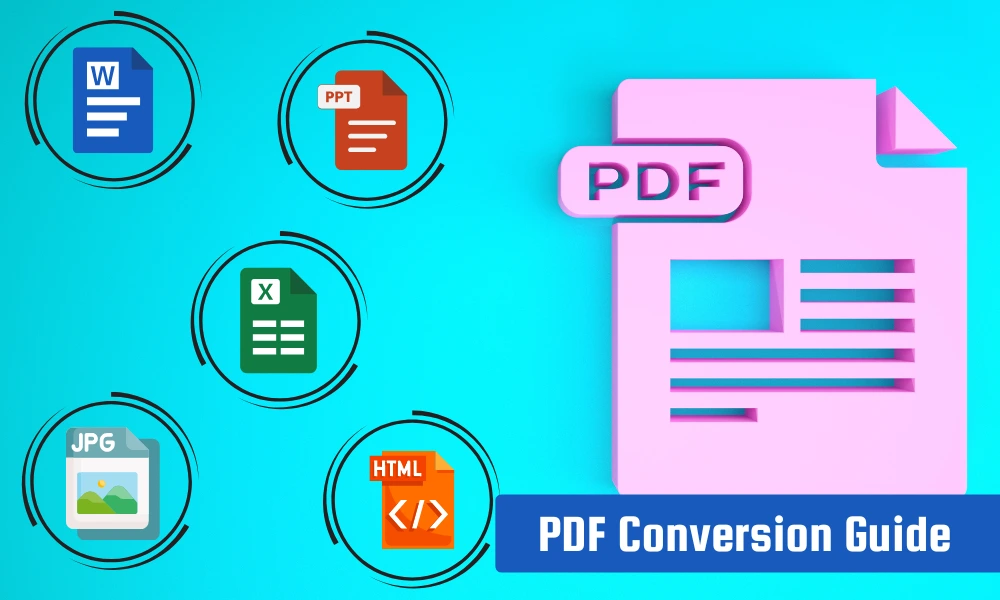
Converting Files *to* PDF (Word, JPG, HTML)
This conversion is about finalization. You create a PDF when the document is ready to be shared, printed, or archived. Our tool guarantees that the output PDF looks exactly like the source file, preserving all fonts and layout integrity.Need to finalize a Word document for sending? Convert it instantly with our Word to PDF tool to ensure universal display across all devices.
Troubleshooting Common Conversion Errors with the PDF Conversion Guide
Before you hit ‘Convert,’ be aware of these frequent issues and how your toolkit can solve them.Error 1: File Size is Too Large or Too Slow
Large PDF documents, especially those containing high-resolution images, can be slow to upload, process, and share. The Fix: Always compress files before sending them for conversion or sharing.Reduce file size without losing quality using our PDF Compression tool.
Error 2: Complex Tables and Columns Lose Structure
When a complex, multi-column PDF is converted, the text often runs together. The Fix: Instead of converting the whole document, sometimes it is better to extract only the necessary pages and convert those sections separately, or to split large documents into smaller, more manageable chapters.Use our Split PDF tool to isolate sections before attempting complex conversions.
Error 3: The PDF is Password Protected
If you don’t have permission to edit or convert a file, you need to remove the password first. The Fix: If you own the document and know the password, you can use an unlock tool to remove the security restrictions temporarily.If you have the necessary credentials, use our Unlock PDF tool to remove the protection and enable conversion.